
When a media job is finished, the results are either already in your own storage or with us. You choose which for each output when you create the job. Here's how to get the files and how long they're available.
Two ways to deliver outputs
- Own upload URL (
put_url): FlowData uploads the result directly to your storage, for example your S3 bucket. There's nothing to download. In the job view the output shows own upload URL. - Stored by us (
"managed": true): FlowData keeps the result for you for seven days. You download it in the app or through the API.
Downloading in the app
- On the left under Media processing, open Jobs.
- Click the eye icon on the job you want.
- Scroll to Outputs. Each output marked stored by us with the status Uploaded has a download icon on the right.
- Hover over it: the tooltip Download (available until …) tells you how long the file will be there.
- Click the icon. The download starts right away.
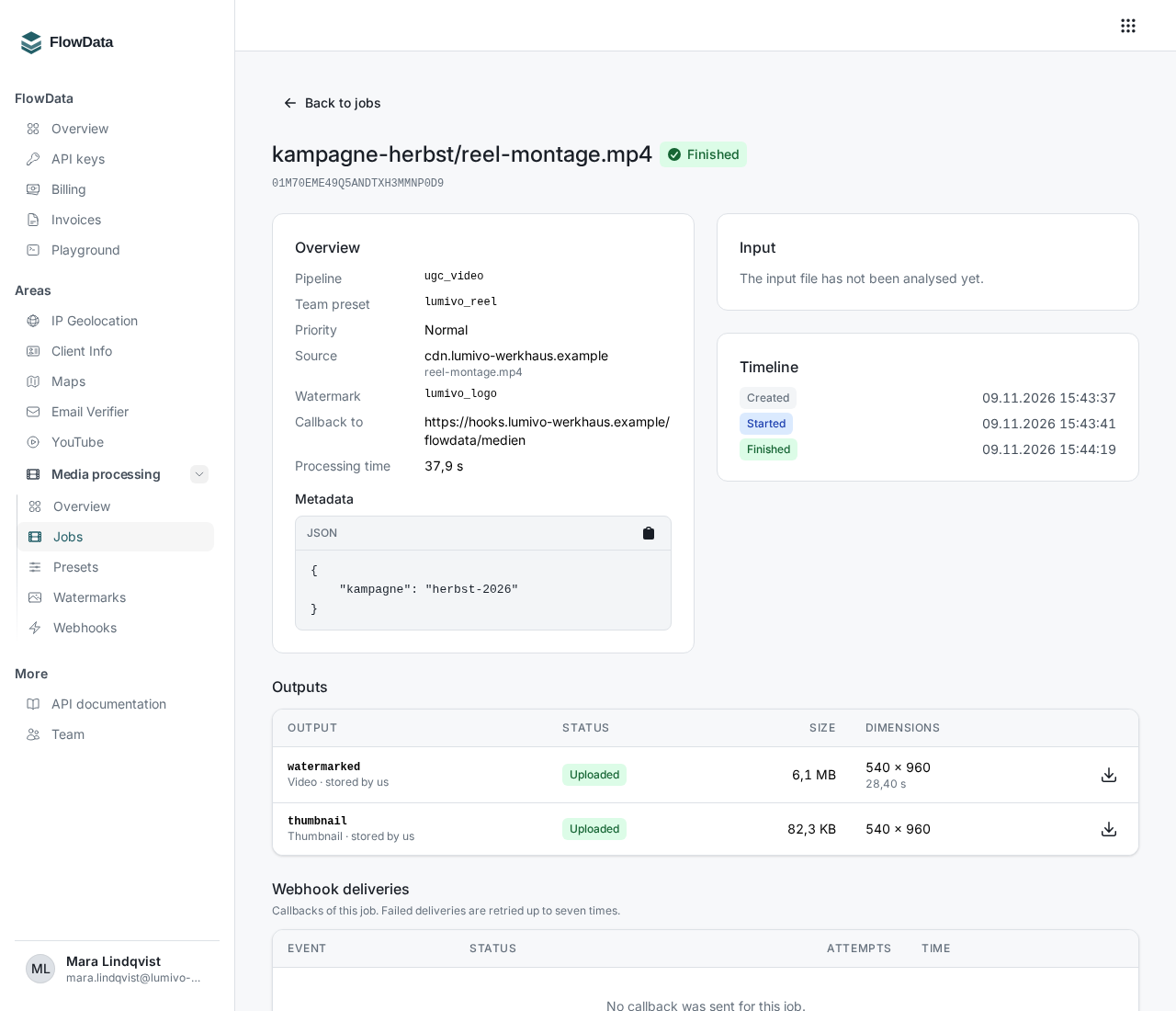
The link behind the icon is only valid for five minutes and is regenerated on every click, so don't copy it into other systems. Download the file or use the API instead.
Fetching through the API
Look up the job by its ID:
curl "https://api.flowdata.one/v1/media/jobs/YOUR_JOB_ID" \
  -H "Authorization: Bearer fd_YOUR_KEY"
For each stored output, the response contains a download_url and an expires_at. Download the file before that time. While the output isn't uploaded yet, download_url is null. If you've set up a webhook, the same job view is included in the job.finished callback, so you don't have to keep polling.
How long are the files available?
- Outputs stored by us: seven days. After that the download icon disappears.
- Job data such as status, timeline and deliveries: 90 days.
- Files in your own storage: for as long as you keep them there. FlowData doesn't delete anything there.
If something goes wrong
- No download icon: the output went to your own upload URL, isn't ready yet (Pending), has Failed, or the seven days are over.
- The output failed but the job is partly finished: outputs that were already uploaded stay available. Create a new job for the missing ones. You'll find notes on error codes in How do I track the status of my media jobs?.
- The file doesn't arrive in your storage: check that your
put_urlis valid for long enough. A job can wait a while before it starts. An expired URL is reported withoutput_url_expired.