
For your software to call FlowData, it needs a FlowData key. The key starts with fd_, works for all FlowData areas and is sent in the Authorization header with every request. You can create one yourself in a few seconds.
Creating a key
- In the sidebar, open API keys.
- Click New key at the top right.
- Under Name, enter something that will remind you what the key is for, such as "Online shop".
- Under Validity, choose whether the key expires after 30, 90 or 365 days or whether it Does not expire.
- Optional: enter a Monthly limit in whole euros (1 to 100,000). More on this below.
- Click Create.
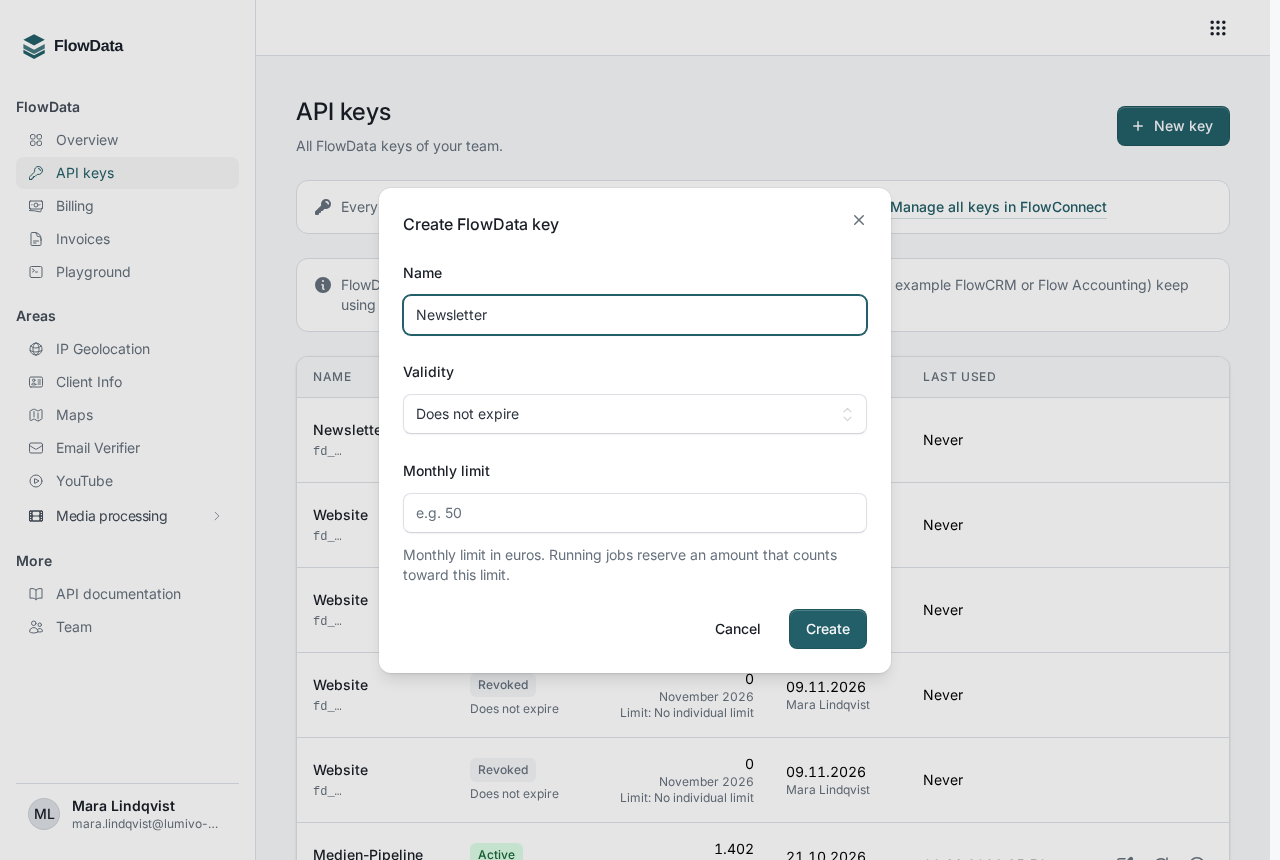
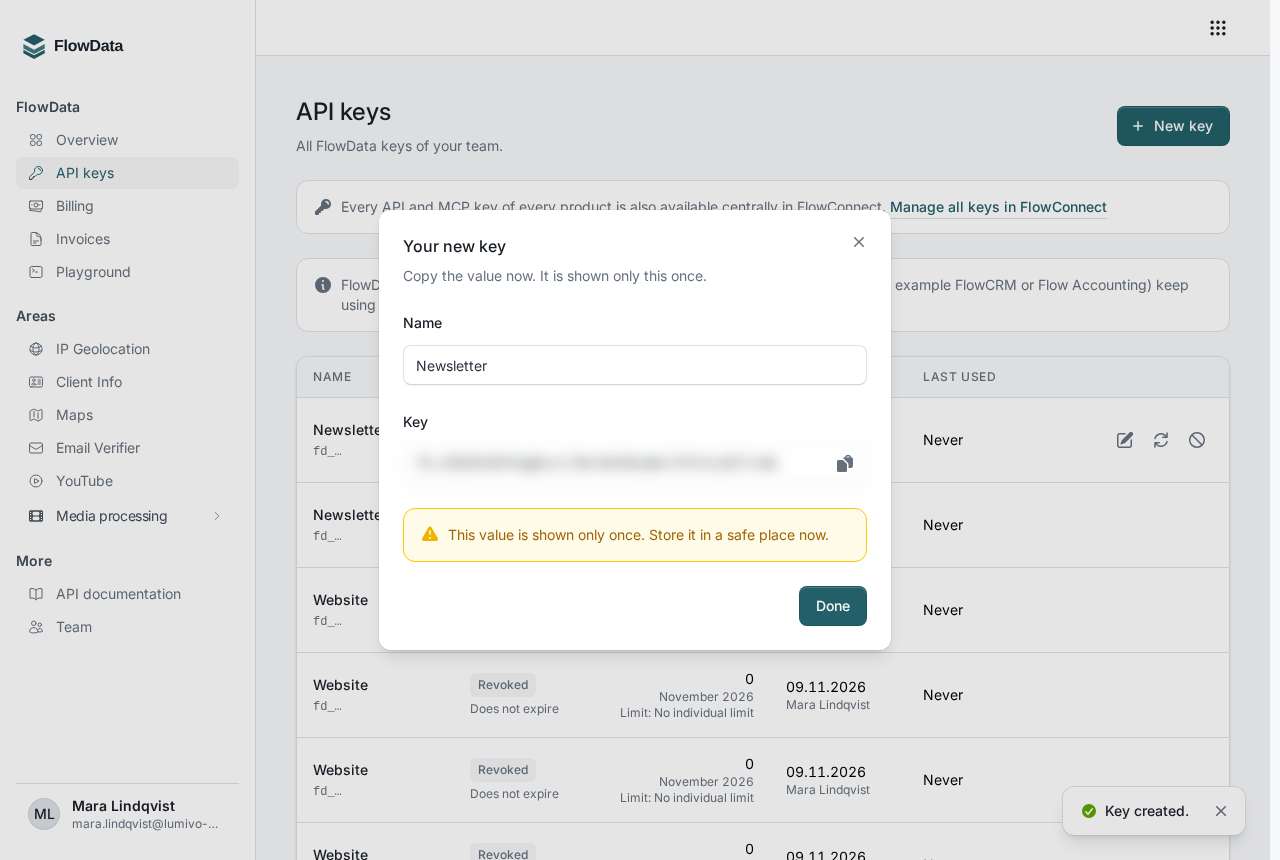
Your new key appears right after that. Copy the value immediately and store it somewhere safe, such as your server's configuration. It is shown only this once. Click Done to close the dialog.
Using the key
Send the key as a bearer token. Here is a simple test with IP Geolocation:
curl "https://api.flowdata.one/v1/geolocation/8.8.8.8?lang=de" \
  -H "Authorization: Bearer fd_YOUR_KEY"
The key only works on the FlowData endpoints. For FlowSuite modules such as FlowCRM or Flow Accounting, keep using the keys from your profile. You can also find all your product keys in one place in FlowConnect, see API and MCP keys.
Never use the key in your website's browser code, or any visitor can read it. Always call FlowData from your server, and never put the key in the URL.
The key list
For each key, the list shows the Status with its expiry date, the Requests in the current month with the limit, when and by whom it was Created, and when it was Last used. Owners and people with team management rights see all of the team's FlowData keys; everyone else sees only their own.
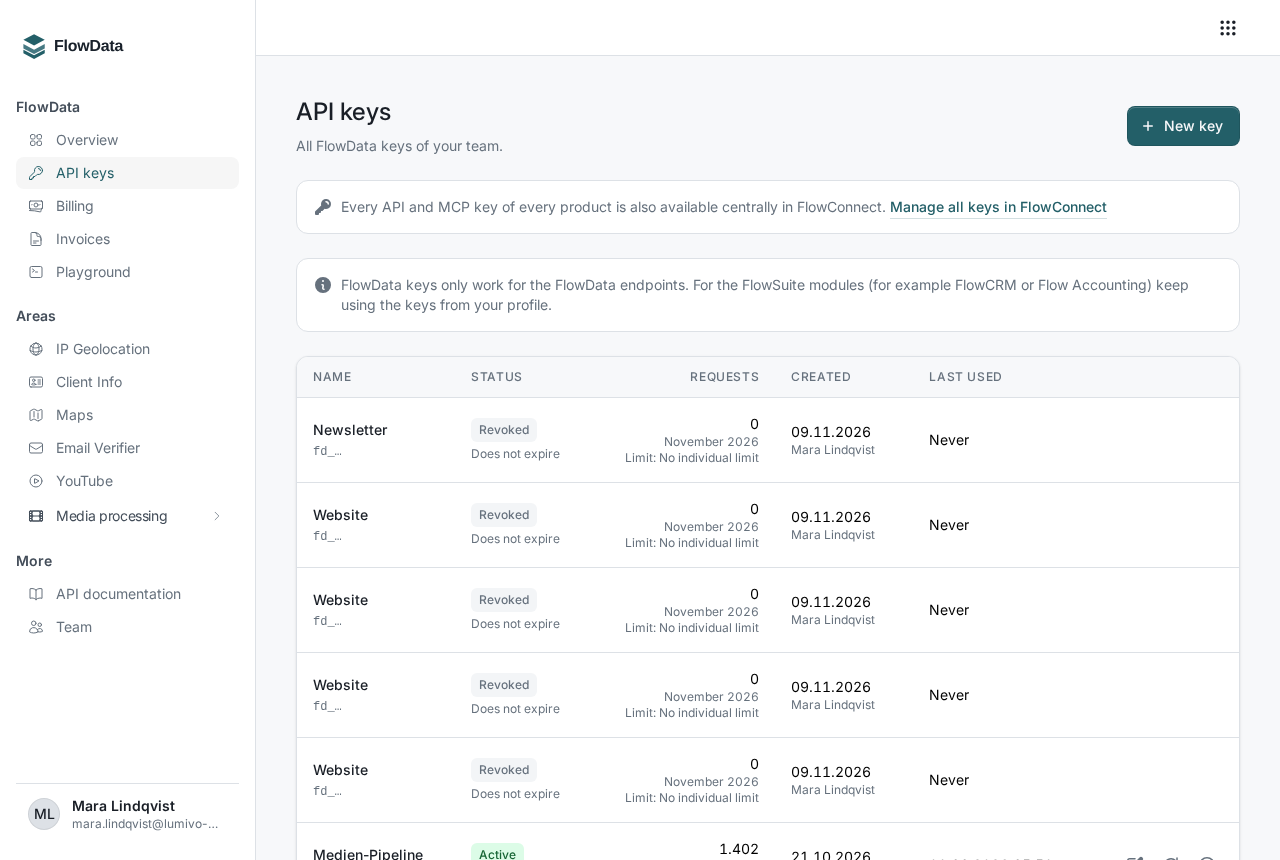
The actions are at the right of each row:
- Edit: change the name, the expiry date (Expires on) and the Monthly limit. If you leave the date empty, the key doesn't expire.
- Regenerate: creates a new value for the same key. The old value keeps working for a short transition period, and the confirmation dialog tells you how long. During that time the list shows the status Rotating, so you can switch your integration over without failed requests. This action is only available to the person who created the key.
- Revoke: the key stops working immediately. This can't be undone. Revoked keys stay in the list with the status Revoked so you can trace them later.
The monthly limit
The limit caps how much a single key can spend per calendar month, in the data areas as well as in media processing. Running media jobs reserve an amount up front that counts toward the limit. Once the limit is reached, FlowData refuses further paid requests from this key until the month changes or you raise the limit. You can also set a spend limit for the whole team, see Billing, balance and spend limit.
If something goes wrong
- Response 401: the key is missing, was copied incorrectly, has expired or was revoked. Check that the header reads exactly
Authorization: Bearer fd_…. - Response 403 with
flowdata_access_denied: the key belongs to someone who no longer has FlowData access in the team. A key only works as long as its owner is allowed to use FlowData. - Lost key: nobody can display the value again. If you created the key yourself, use Regenerate and enter the new value in your integration. Otherwise, revoke it and create a new one.
All other messages are covered in Errors and rate limits.