
FlowData charges by usage: every successful request in the data areas and every delivered output in media processing. Under Billing (https://flowdata.one/dashboard/abrechnung) you can see what your team has used, top up credit and set a monthly spend limit. FlowData credit is separate from FlowAI API credit.
What exactly is charged is explained in How are FlowData prices calculated?.
The two billing types
The top right of the first card on the page shows which type applies to your team:
- Prepaid: You top up credit in advance and usage is paid from it. This is the default for every team.
- Postpaid: Your team uses FlowData on account and usage is invoiced once a month. Billing by usage has to be enabled by us, so please contact support.
Prepaid: credit
Three figures are shown at the top of the page:
- Credit: your current balance
- Reserved: the amount temporarily held by media jobs in progress
- Available: what you can still spend on new requests and jobs
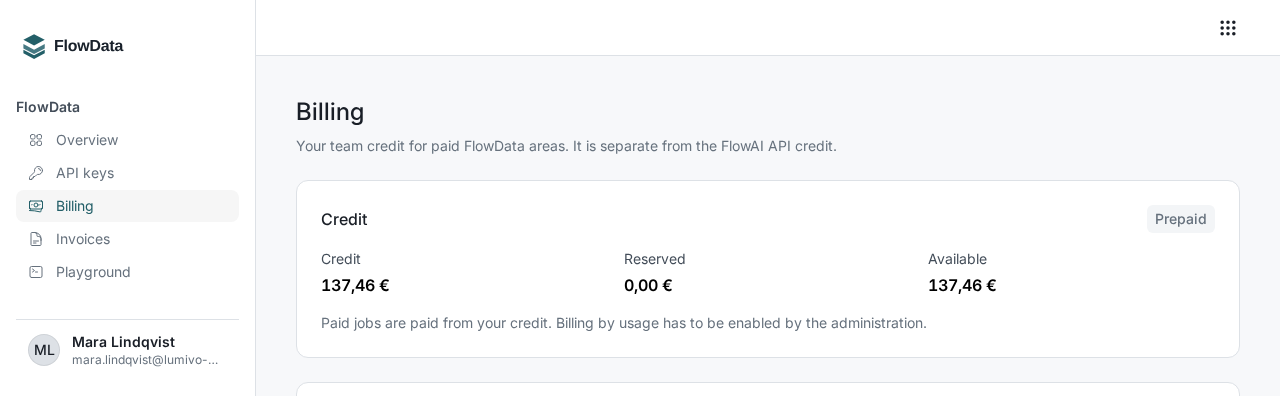
Usage from the data areas is posted every hour. If you see Usage not yet posted below the figures, that amount already counts towards Available and this month's usage, but it only appears in the list after the next posting.
To add funds, see How do I top up my FlowData credit?.
Postpaid: usage and credit line
If your team is on postpaid, the page shows Usage this month, Total outstanding and Reserved for jobs in progress instead of credit. The total outstanding covers usage not yet invoiced and invoices that have been issued but not paid.
Below that, a bar shows how much of the Credit line is in use. The credit line caps the total outstanding amount. Once it is used up, new requests and jobs are rejected. Changes to the credit line go through support.
At the start of each month, FlowData invoices the previous month's usage and charges it to the stored payment method. Without a chargeable payment method, you pay by bank transfer.
Current prices
The Current prices card shows the prices that apply to your team, including any special terms your team may have. The general price list is on the pricing page.
Monthly spend limit
Regardless of billing type, you can set a ceiling per calendar month for the whole team.
- Under Monthly spend limit, enter the amount in the Limit in euros field.
- Click Save limit.
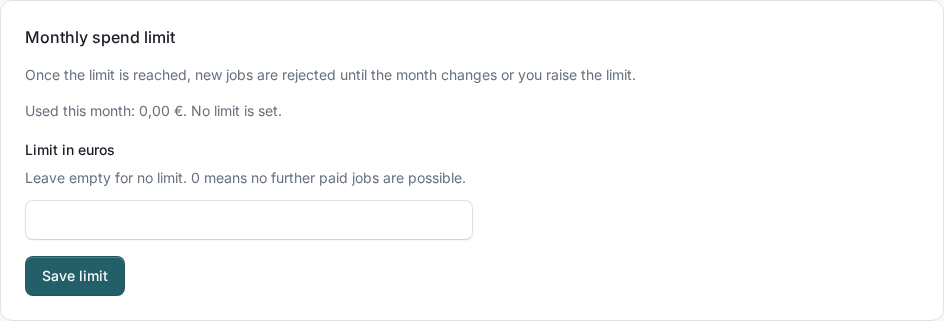
Above the field you can see how much has been used this month. Media jobs in progress count with their reservation. Once the limit is reached, new paid requests and jobs are rejected until the month changes or you raise the limit. If you leave the field empty, there is no limit. A value of 0 means nothing paid is possible any more.
You can also give each API key its own Monthly limit, see How do I create a FlowData API key?. That lets you cap a test integration without restricting the whole team.
Recent entries
The bottom of the page lists the last ten entries with date, Type (Top-up, Usage, Reversal or Correction), amount and any note. Invoices at the top right of that card takes you straight to your invoices.
If something goes wrong
The data areas and media processing report the same reasons with different status codes:
| Code | Data areas | Media jobs | Meaning |
|---|---|---|---|
insufficient_quota |
HTTP 402 | HTTP 429 | On prepaid the available credit is not enough, on postpaid the credit line is not enough. |
spend_limit_exceeded |
HTTP 402 | HTTP 429 | The spend limit of the team or the key has been reached. Raise the limit or wait for the next month. |
- Red notice "Billing suspended": New paid requests and jobs are rejected, in the data areas with HTTP 403 and the code
billing_suspended. Please contact support. - HTTP 503 with the message "Billing is temporarily unavailable.": Try again shortly.