
A preset saves your media processing settings: size, quality, watermark and more. Instead of sending these values in every job, you simply name the preset's key. If your requirements change, you update the preset rather than every integration.
System presets and your own presets
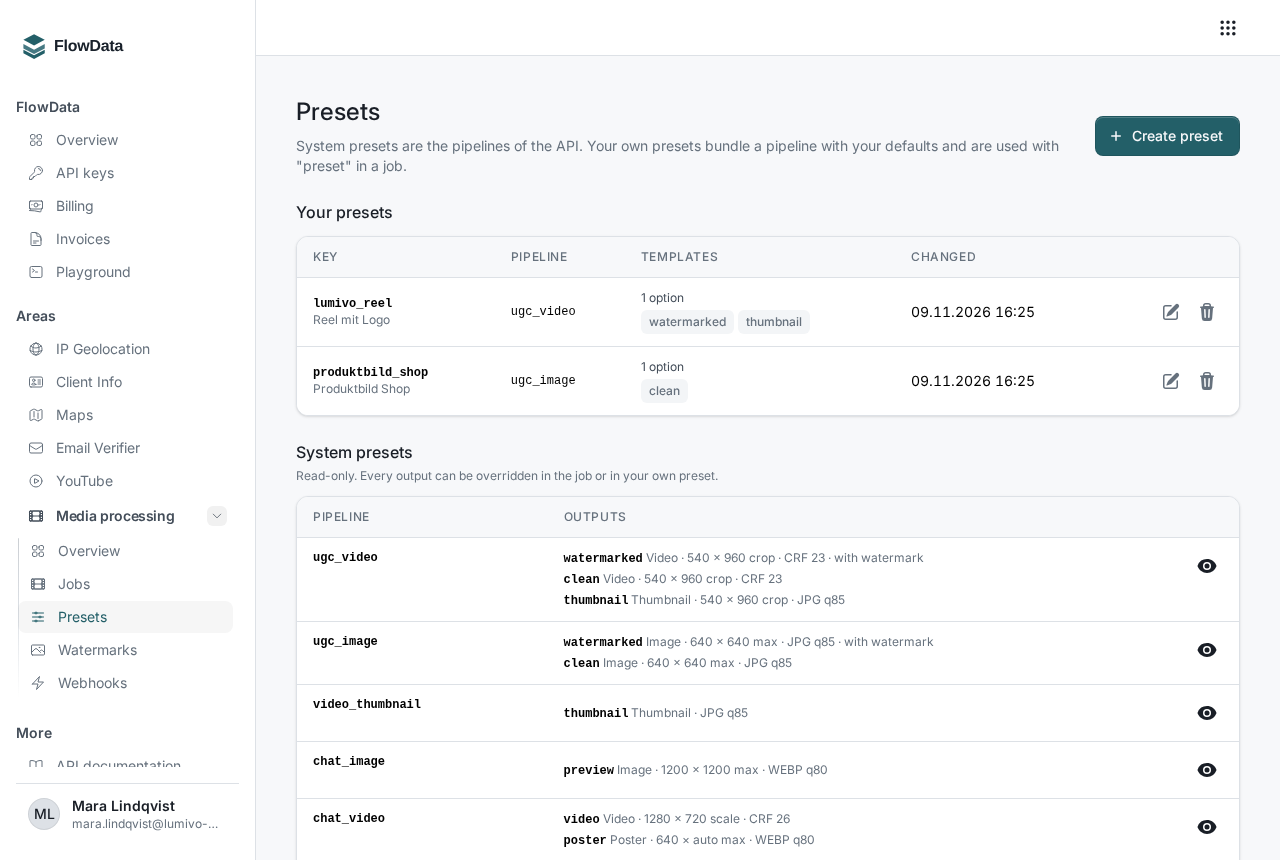
On the left under Media processing, open Presets. The page has two parts:
- Your presets: your templates with key, base pipeline, number of options and the date of the last change
- System presets: the fixed API pipelines with their outputs and defaults. They are read-only. The eye icon (Show defaults) lists all values in detail.
Creating a preset
- Click Create preset at the top right.
- Choose a Key, for example
shop_video. It can be 1 to 64 characters using lowercase letters, digits, underscore and hyphen. The key can't be changed later, because that's how you call the preset in a job. - Optional: enter a descriptive name under Name (optional).
- Choose the Base pipeline, for example
ugc_videoorchat_image. - Under Options for all outputs, enter only the values that should differ from the pipeline. Empty fields keep the pipeline default.
- If you want a logo overlaid, choose the Asset under Watermark and set the size, opacity, position and margins.
- Click Save.
FlowData checks the preset on saving with the same rules as a job, so you'll see errors right away and not the first time you use it.
The most important options
- Width (px) and Height (px) with Fit: Crop (crop) fills the format exactly and cuts off anything that sticks out. Fit inside (scale) fits the file into the format without changing the aspect ratio. Maximum size (max) only reduces and never enlarges small files.
- CRF: video quality between 18 and 32. A lower value means better quality and larger files.
- x264 preset and Max. frames per second: fine control for videos
- Audio: Keep or Remove
- Image format and Image quality: for images, thumbnails and posters
Under Output templates (JSON, optional) you can set individual outputs differently, for example {"clean": {"crf": 22}} to give the output without a logo slightly higher quality.
Using the preset in a job
Instead of pipeline, send preset with the key:
curl -X POST "https://api.flowdata.one/v1/media/jobs" \
  -H "Authorization: Bearer fd_YOUR_KEY" \
  -H "Content-Type: application/json" \
  -d '{
    "preset": "shop_video",
    "reference": "order:4713",
    "input": { "url": "https://files.example.com/videos/4713.mov" },
    "outputs": { "watermarked": { "managed": true }, "clean": { "managed": true } }
  }'
Values in the job take precedence over the preset. The order is: pipeline default, then the preset's options, then the preset's output templates, then the job's options and finally the values of an individual output in the job.
Presets can also be managed through the API: GET and POST https://api.flowdata.one/v1/media/presets as well as DELETE https://api.flowdata.one/v1/media/presets/{key}. A POST with an existing key replaces the preset.
Editing and deleting
In the row of one of your presets you'll find Edit and Delete. After deleting, new jobs using this preset are rejected. Jobs already created continue unchanged.
Good to know
- The names of the system pipelines such as
ugc_videoare reserved and can't be used as keys for your own presets. - You need to upload a watermark first, see How do I upload a watermark for media processing?.