
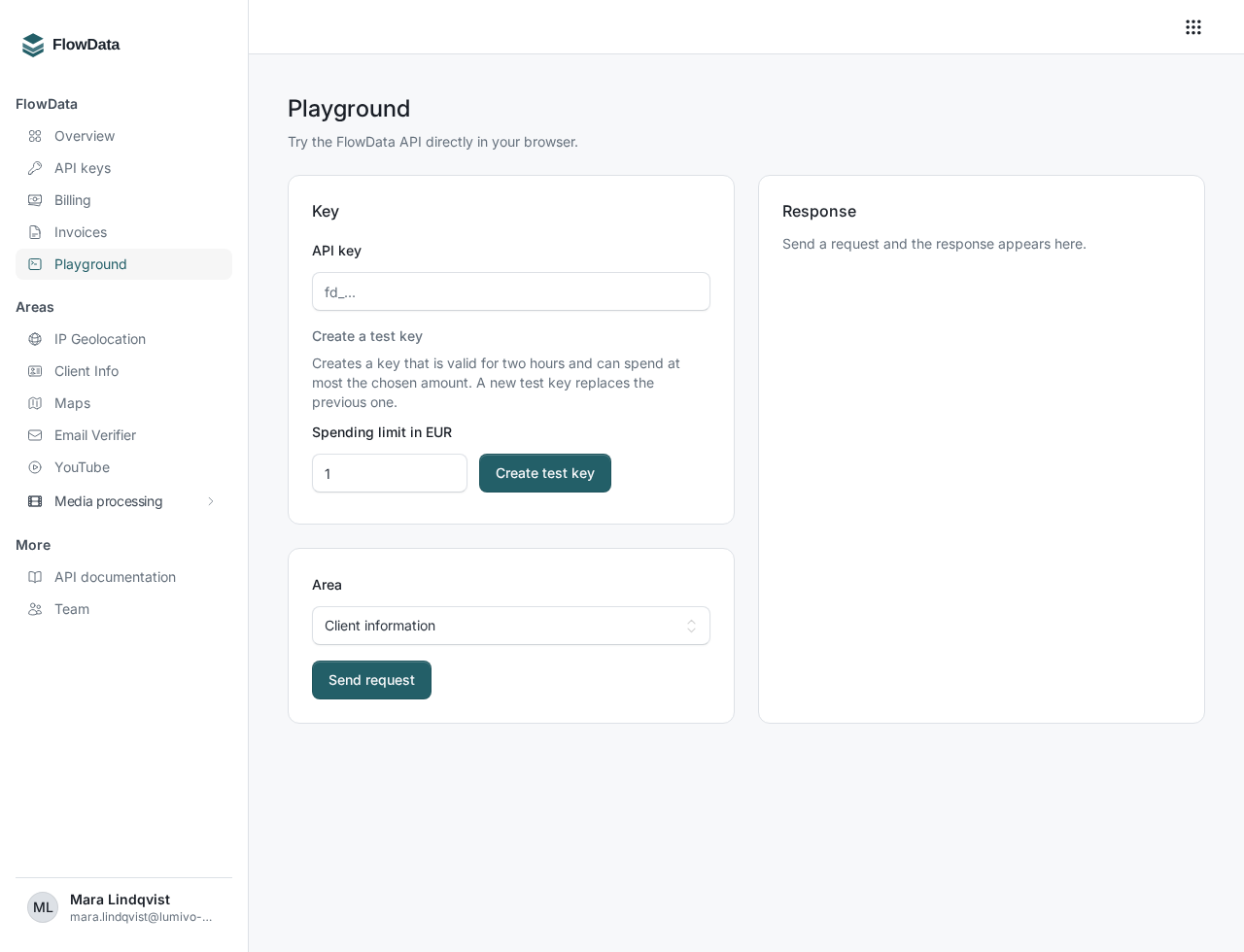
In the Playground you can try the FlowData API directly in your browser without writing any code and without an API key. After signing in, you will find it in the sidebar or at https://flowdata.one/dashboard/playground. Requests go to the real API and are billed to your team like any other request.
Send a request
- Choose the Area, for example Maps: search or Email verification.
- Fill in the fields. Required fields are marked with an asterisk.
- Click Send request.
The status and the API response appear under Response.
Why you do not need a key
The Playground sends your request to the API through FlowData itself. For this, FlowData creates an internal key for you that you never get to see and that appears in no key list. It has no spend limit of its own.
- Costs: Successful requests are paid from your FlowData credit like any other request, or added to your next invoice on postpaid. Your team's spend limit applies here as well, see How does billing work in FlowData?.
- Log: Every request appears in the area's log with the key name Playground, see Statistics and log.
- Your data: Client information and an IP geolocation without input describe your browser and your IP address, not the server.
Confirm paid requests
Before anything costs money, the Playground asks first. In the Paid request dialog you see the price and confirm with Send.
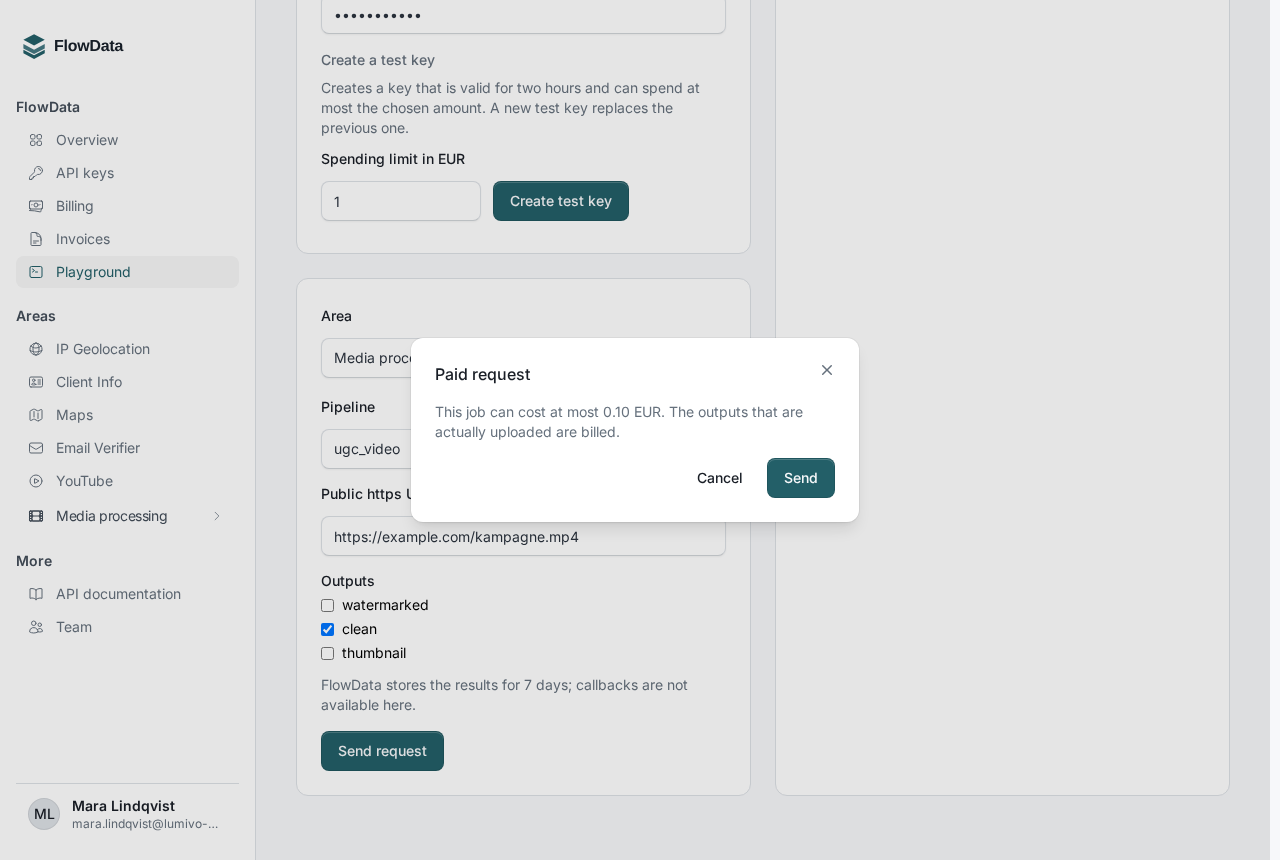
- Data areas: You confirm once per browser session. Only successful requests are billed.
- Media processing: You confirm each job individually and see the maximum amount. The outputs actually delivered are billed.
- Client information and anything free for your team run without asking.
Try media processing
Under Media processing, pick the Pipeline, enter a public https URL of the source and select the Outputs. You can only use a Watermark if your team has already uploaded one.
FlowData stores the results for 7 days, and callbacks to your own address are not available in the Playground. Refresh status shows the progress, and finished outputs appear under Downloads.
If something goes wrong
- "The request did not get through.": Check your internet connection.
- Not enough credit (status 402): The Playground shows a notice with the link Go to billing. Top up your credit there or raise your team's spend limit, see How do I top up my FlowData credit?.
- "Too many requests in a short time.": The Playground allows up to 60 requests per minute. Wait a moment and send again.
- Other status codes are explained in Errors and rate limits.